

There are millions of Chrome extensions out there. But there’s two problems: One, the extension that solves your exact problem might not exist. Two, even if it does, you’re rolling the dice on whether it’s safe.
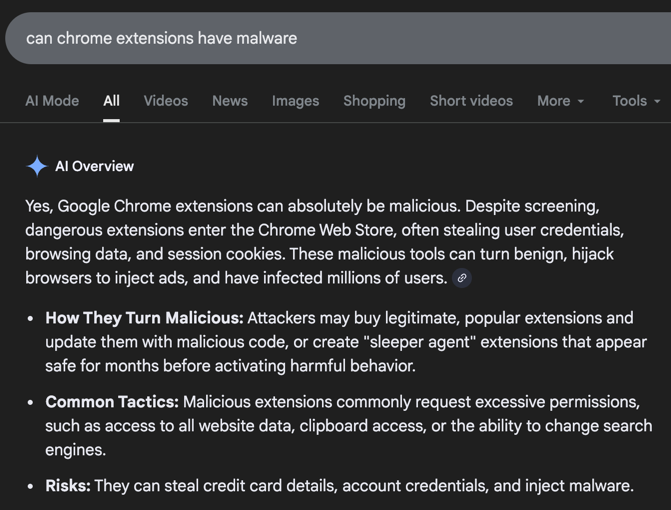
That screen recorder extension? It might be reading every webpage you visit. That niche PDF tool you installed last month? It could be logging your keystrokes. I’m not being paranoid. I installed some extensions a while back, and a couple weeks later my Amazon account was hacked. Google will straight up tell you that Chrome extensions can steal credentials, browsing data, and session cookies despite their screening process.
Vibe coding solves both of those problems at once.
You describe what you want in plain English, the AI builds it, and you load it into your browser. It does exactly what you need, nothing more. No mystery code. No data being sent to some server you’ve never heard of. No waking up to find your accounts compromised.
I’ll walk you through exactly how I did this (and how you can build your own extensions for whatever you need) so you can follow along and apply it to your specific situation.
The Extensions I Built (and Why)
I didn’t set out to make a video about this. I had two actual problems that were bugging me at work, and I couldn’t find clean solutions in the Chrome Web Store.
Problem one: screenshots. I take a lot of screenshots for training courses, and getting a clean capture of a specific element on a page is a pain. I’d screenshot too much, end up with extra background, then have to crop it. Over and over.
So I had the AI build me an extension that puts a border around page elements. I hover over what I want, press the up arrow to expand to the parent element if needed, press enter to capture, and it saves a perfectly cropped screenshot. I can also hold control and enter to copy it straight to my clipboard for pasting into a doc or blog post.
Problem two: blurring sensitive info. When I’m recording training videos, there’s stuff on the screen I don’t want visible. Account details, personal info, whatever. I needed a way to blur specific elements.
So I had the AI build me a blur extension. I click it, select the elements I want hidden, press enter, and they’re blurred. The blur even persists across page refreshes and different URLs until I manually clear it.
Both of those took minutes to build. Both solved problems I’d been dealing with for months. And both are guaranteed safe because the likelihood of the AI injecting a virus or malware is basically zero.
Now, you probably don’t need a screenshot tool or a blur tool. But you almost certainly have some repetitive browser task that’s eating your time, or you’re relying on an extension you don’t fully trust.
So let me show you how to build your own Chrome extensions using vibe coding that solve your exact problem and are way more secure than a random extension coded by some random person.
What You Need
A coding tool. I recommend using a command line coding tool like Claude Code or Codex. The reason: when you build an extension inside ChatGPT or Claude’s web interface, your context window eventually runs out of space, you’re copying and pasting code, and you’ll lose your changes. A command line tool works directly with your files and lets you iterate cleanly.
For this walkthrough, I’m using Claude Code, which requires a Claude subscription ($20/month). But you can follow the same process with Codex if you have a ChatGPT subscription, or even build simpler extensions directly in ChatGPT or Claude’s web interface if you want to start there.
A browser. Chrome, Brave, Microsoft Edge. Any Chromium-based browser works.
That’s it.
Step-by-Step: How I Built a Color Picker Extension
I’m going to walk through building a brand new extension I’ve never built before. A color picker. As you follow along, mentally swap my use case for yours. The process is identical regardless of what you’re building.
1. Set Up Your Project Folder
Same as any vibe coding project. Create a Projects folder if you don’t already have one, then create a subfolder for this specific project.
If you’re using Claude Code, you’ll do this in the terminal:
mkdir projects(creates the folder)cd projects(moves into it)mkdir c-color-picker(creates the extension folder)cd c-color-picker(moves into it)claude(launches Claude Code)
If you’re using a different tool, just create the folder however you normally would and point your tool at it.
2. Describe What You Want
This is the prompt I used:
AI Prompt
I want to create a Chrome extension that is a color picker. It will have an eyedropper when I click the icon and I can select any color on the page. I need a magnifying glass to show up close when I’m moving the eyedropper around. Once I click the color, it will indicate as such and copy to the clipboard. It would also like an option in the extension to select all the main colors on the page and it would display them in a popup loading grid.
That’s it. Plain English. I described the features I wanted and let the AI figure out how to build it.
Your prompt would describe your extension.
Maybe it’s: “I want an extension that highlights all the phone numbers on a page and lets me click to copy them.”
Or: “I want an extension that counts the words on any page I’m viewing.”
Or: “I want an extension that saves the current URL and page title to a running list I can export as a CSV.”
Whatever your problem is, describe the solution.
3. Let It Plan Before It Builds
Claude Code usually starts in plan mode automatically (most AI coding tools will when you say “I want to create” or “I want to build”). This is important. Planning and coding are two separate thinking tasks, and the output is significantly better when they’re separated.
The plan it came back with was impressive. For my color picker, it mapped out the full file structure, a background service worker, the eyedropper logic, and for the “extract all colors” feature, it proposed using K-means clustering on a screenshot to identify the 12 most dominant colors. It even sampled every fifth pixel to keep performance manageable on 4K screenshots.
Would that have taken me a month to learn and code by hand? At least. Claude planned it in minutes.
It also asked me some clarifying questions: What color format for the clipboard? (Hex.) Should it use Chrome’s built-in eyedropper API or a custom canvas? (Custom, so it works across Brave and Edge too, and supports the magnifier.) These are good questions. Answer them and let it continue.
4. Load It Into Your Browser
Once the AI finishes coding, loading the extension takes about 30 seconds:
- Open your browser’s extension manager (click the puzzle piece icon, then Manage Extensions)
- Click Load Unpacked
- Navigate to your project folder and select it
- Pin the extension to your toolbar
Done. Your custom extension is live.
5. Test It and Fix What’s Off
First time I tested my color picker, the eyedropper wouldn’t reach the bottom of the viewport. So I went back to Claude Code and typed:
AI Prompt
I love it, but the color picker won’t go to the bottom of the viewport.
Plain English. Claude fixed it. I clicked Update on the extension page, and the fix was live.
Then I noticed the color extraction popup disappeared when I clicked away, and I wanted it to persist so I could copy multiple colors. Back to Claude Code:
First time I tested my color picker, the eyedropper wouldn’t reach the bottom of the viewport. So I went back to Claude Code and typed:
AI Prompt
I wish it would persist on the screen until I clicked an X or refreshed the page.
Fixed. Update. Done.
This is the rhythm of vibe coding: build, test, describe what’s wrong, fix, repeat. Each fix takes seconds. You don’t need to understand the code. You just need to describe the problem like you’re telling a coworker what’s broken.
One tip: fix things one at a time. Don’t dump five problems into one message. Small, specific requests get cleaner results.
What Could YOU Build?
A color picker was my example. But Chrome extensions can do almost anything that happens in a browser. Here are some ideas to get you thinking:
If you do a lot of research. An extension that grabs all the headings from a page and compiles them into a quick outline. Or one that saves highlighted text from multiple tabs into a single document.
If you’re in sales or outreach. An extension that pulls contact info from a company’s website and formats it for your CRM. Or one that auto-fills parts of your prospecting workflow.
If you manage content. An extension that checks word count, reading level, or meta descriptions on any page you visit. Or one that compares your page’s heading structure against a competitor’s.
If you’re tired of repetitive browser tasks. Anything you do over and over in a browser (copying, formatting, navigating between the same five tabs) is a candidate for a custom extension.
If you want to start a business with this. Think about it. Every company has employees doing repetitive browser work. An extension that saves them 20 minutes a day is worth real money. You could reach out to businesses, identify their pain points, and vibe code custom solutions.
The Security Angle (This Actually Matters)
This isn’t just about convenience. Every Chrome extension you install from the Web Store has access to your browsing data unless you manually restrict it. The popular ones are probably fine. But that niche extension with 500 downloads that does exactly what you need? You’re trusting a stranger with access to every site you visit.
When you vibe code your own extension, there’s nothing in the code except what you asked for. No tracking. No data exfiltration. No surprises. You built it and the only stuff in it should be what you told the AI to put in it.
For anyone handling sensitive information at work (client data, financial accounts, internal tools) this alone is reason enough to build your own.
The Bigger Point
This is the second video in what’s becoming a series on small, practical vibe coding projects. The first one was a study website for my daughter (she’s still using it, her friends are all jealous, and my phone won’t stop ringing).
The theme is the same: you don’t have to build some massive app to get real value from vibe coding. A Chrome extension that saves you 10 minutes a day. A study tool that makes your kid think you’re a wizard. A small utility that solves one specific problem nobody else has solved for you.
That’s the stuff that actually matters. And it’s stupidly easy to build.